The Best Platforms for Resizing Images with Preset Aspect Ratios and Custom Dimensions
The Best Platforms for Resizing Images with Preset Aspect Ratios and Custom Dimensions
Whether you manage a brand’s social media presence, run an online store, or simply want your photos to look right wherever they appear, finding the right image resizing tool can save you a significant amount of time and frustration. This article is for anyone who needs to resize images quickly and accurately, with options for both preset formats and fully custom dimensions. By the time you finish reading, you will have a clear picture of what to look for in a resizing platform, how the major categories of tools compare, and which options are worth your time based on your specific use case.
Why the Right Image Resizer Actually Matters
Not all image resizing tools are created equal. Some offer a basic slider that lets you drag dimensions up or down, while others give you access to a full library of platform-specific presets, custom pixel inputs, crop tools, and quality controls in one place. Choosing the wrong one means either wasting time manually calculating dimensions or ending up with images that look stretched, blurry, or incorrectly framed.
The stakes are higher than many people realize. Social media platforms have strict and frequently updated size requirements, and an image that looks fine at full resolution can appear cropped or distorted when uploaded without proper sizing. For ecommerce sellers, incorrectly sized product images can affect how listings appear in search results or on mobile devices. For bloggers and marketers, oversized files slow down page load times, while undersized images can look amateurish next to well-optimized content.
Understanding exactly what features matter most before selecting a tool is the most efficient path to a good decision.
The Core Features to Evaluate in Any Image Resizer
Before comparing specific platforms, it helps to have a consistent framework for evaluation. Here are the key criteria to apply when assessing any image resizing tool:
- Preset availability: Does the tool include ready-made sizes for major social platforms like Instagram, Facebook, YouTube, Pinterest, and LinkedIn? Good presets eliminate guesswork and prevent errors.
- Custom dimension input: Can you manually enter exact pixel values for width and height? This matters for web design, print work, and any project with specifications that fall outside common formats.
- Aspect ratio locking: Does the tool let you lock the ratio between width and height so the image scales proportionally without distortion?
- File format support: At minimum, look for JPG and PNG support. Support for WebP and HEIC is a bonus for modern workflows.
- Output quality controls: Can you adjust compression or quality level before downloading? This affects file size and visual clarity.
- Ease of use: Is the tool accessible to people without a design background? A clean, intuitive interface reduces the learning curve.
- Editing beyond resizing: Does the platform offer additional tools like background removal, cropping, filtering, or text overlays that could save you from opening multiple apps?
- Mobile accessibility: Can you use the tool on a phone or tablet without downloading an app? Browser-based mobile support matters for on-the-go workflows.
- Batch resizing: If you regularly resize large numbers of images, does the tool let you process multiple files at once?
- Privacy and data handling: Does the platform process your images on their servers, or locally in your browser? Sensitive content may require local processing.
The Main Categories of Image Resizing Platforms
Browser-Based Quick Action Tools
For users who need a fast, frictionless experience without creating an account or installing software, browser-based quick action tools are often the first stop. These tools typically ask you to upload a single image, choose from a dropdown of preset sizes or enter custom dimensions, and download the result within seconds.
This category works well for low-volume, time-sensitive tasks like resizing a single photo for a specific platform before posting. The trade-off is that most basic browser tools do not offer additional editing capabilities, so if you need to crop, reposition content, or apply color adjustments after resizing, you will likely need a second tool.
When evaluating browser-based resizers in this category, check whether the preset library covers the platforms you use most often and whether the tool flags potential quality issues when you upscale. Some tools display a warning when your selected output size is larger than the original image, which is a useful feature that protects you from exporting a noticeably degraded result.
All-in-One Design Platforms with Built-In Resizers
A step up from single-purpose tools, all-in-one design platforms combine image resizing with a broader set of editing and creation features. These platforms are better suited to content creators, marketers, and small business owners who regularly produce visual assets and want to stay in a single workspace from start to finish.
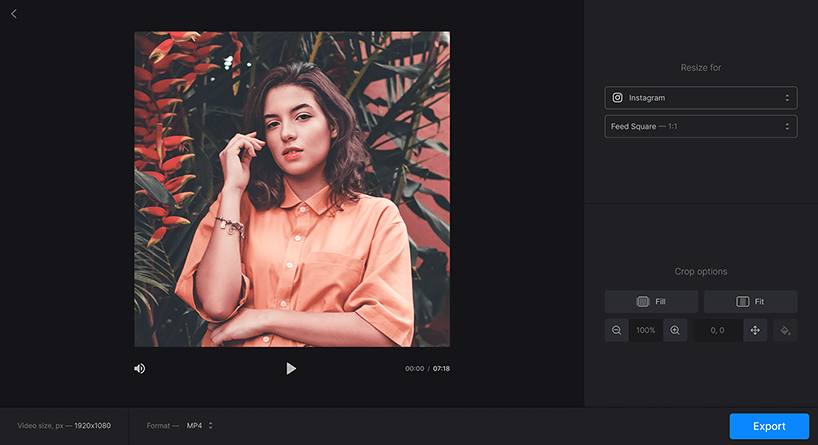
Within this category, tools vary significantly in their depth of preset libraries and the flexibility of their custom dimension inputs. The best options let you select from presets organized by platform and post type, such as distinguishing between an Instagram feed post and an Instagram story, rather than just offering a generic list of ratios. They also let you adjust cropping and positioning after applying a new size, which is important for making sure your subject stays centered and nothing important gets cut off.
One strong option in this category is the image resizer from Adobe Express. The tool includes a full library of social media presets organized by platform, covering Instagram, Facebook, X, YouTube, Pinterest, and more, alongside standard aspect ratio options. Users who need something outside the preset list can enter custom pixel dimensions directly. A particularly practical feature is the quality warning system: if your chosen output size is likely to cause visible degradation because the original file is too small, the tool surfaces a warning before you download, so you can make an informed choice about how to proceed. Adobe Express is also accessible on mobile browsers without requiring a download, which makes it useful for workflows that move between devices. Beyond resizing, it connects directly into a broader suite of editing tools including background removal, filters, and template-based design, so users who want to keep editing after resizing can do so without switching platforms.
Adobe Express is not the only solid choice here, but it stands out for combining a thorough preset library with custom dimension flexibility, quality transparency, and a low barrier to entry for users who are not designers.
Specialized Social Media Resizing Tools
Some tools are built specifically around social media workflows, with preset libraries that are updated as platforms change their recommended dimensions. These tools often include safe zone guides, which are overlays that show you where platform-specific UI elements like caption text or action buttons will appear so you can make sure important visual content stays visible.
If you post consistently across multiple platforms and need to export the same image in several different sizes in one session, this category of tool is worth investigating. The best options let you upload once and export multiple sizes in a single workflow rather than repeating the upload process for each platform.
The trade-off is that these tools tend to be more narrowly focused. They are excellent at what they do but may not offer the broader design editing capabilities that all-in-one platforms provide. If your only goal is correctly sizing images for distribution and you do not need to add text, apply filters, or create graphics from scratch, this is a highly efficient category.
Privacy-First Local Processing Tools
A smaller but important category of image resizer processes your files entirely within your browser, meaning your images are never uploaded to a remote server. This approach is relevant for users who work with confidential visuals such as internal brand assets, client work under NDA, or personal photos they prefer not to share with a third-party platform.
Local processing tools typically offer both preset aspect ratios and custom dimension inputs, and some include options to lock the aspect ratio, scale by percentage, and choose output formats. Because all the work happens on your device, these tools can also be faster for basic resizing tasks since there is no upload or download step from a server.
The limitation of most local processors is that they are unlikely to integrate with broader editing features or template libraries. They function more like utility tools than creative platforms. If privacy is your top concern and you do not need to do additional design work, this category is worth prioritizing.
Desktop Software for High-Volume or Advanced Needs
For users who regularly resize large batches of images or need precise control over color profiles, resolution settings, and export formats, desktop software remains a relevant option despite the convenience of browser-based tools. Programs in this category typically support batch resizing with custom actions, meaning you can define a set of output dimensions and apply them to hundreds of files at once.
Desktop applications are generally better at maintaining image quality through multiple rounds of editing, which matters for photographers and print professionals. However, they require installation, often involve a steeper learning curve, and may come with subscription costs that are harder to justify for casual use. For most social media managers, content creators, and small business owners, a well-featured browser-based or all-in-one platform will handle the vast majority of resizing tasks without the overhead of desktop software.
How to Choose Based on Your Actual Workflow
Once you have a clear picture of the available categories, matching the right tool to your workflow comes down to a few honest questions:
- How often do you resize images? If it is occasionally, a simple browser tool with solid presets is probably enough.
- Do you resize for one platform or many? Users who manage multiple channels benefit from tools with comprehensive, organized preset libraries.
- Do you need to edit beyond resizing? If you regularly add text, adjust colors, or want to use templates after resizing, an all-in-one platform will be more efficient.
- Do you work on a team? Collaborative platforms with shared asset libraries can reduce duplicate work.
- Are your images sensitive or confidential? If so, prioritize tools that process locally.
- How important is mobile access? If you post from your phone, look for tools with strong mobile browser support.
Answering these honestly before committing to a tool will save you more time than any individual feature ever could.
Frequently Asked Questions
What is the difference between resizing an image and changing its aspect ratio?
Resizing and changing the aspect ratio are related but distinct operations. Resizing changes the pixel dimensions of an image, which can mean making it larger or smaller while keeping the same proportions, or changing both width and height simultaneously. Changing the aspect ratio specifically alters the relationship between the width and height values, for example converting a square image (1:1) into a widescreen format (16:9). When you change the aspect ratio without cropping, you either need to stretch the image, which can cause visible distortion, or add padding to fill the new canvas. The best tools handle this by giving you the option to crop and reposition the image within the new frame so the most important content stays visible. When evaluating any resizing platform, check whether it gives you control over how the image is repositioned after a ratio change, rather than automatically cropping from the center.
How do I know what image sizes are required for different social media platforms?
Platform-specific image requirements change regularly, and keeping up with them manually can be time-consuming. Many resizing tools solve this by embedding current preset dimensions directly into their interface, so selecting a platform from a dropdown automatically applies the correct pixel values. For users who want an independent reference to cross-check these dimensions, tools like Sprout Social’s Image Size Guide maintain updated breakdowns of recommended dimensions across major platforms including Instagram, Facebook, LinkedIn, X, YouTube, TikTok, and Pinterest. Having both a reliable reference and a resizer that keeps its presets current gives you the most accurate starting point.
Can I resize an image without losing quality?
Reducing an image’s dimensions generally does not cause visible quality loss, because you are simply discarding pixels rather than inventing new ones. Increasing an image’s dimensions is a different story. When you enlarge an image, the software has to generate pixel data that was not in the original, a process called upscaling or interpolation, which can produce blurriness or pixelation if the increase is significant. The best tools use advanced resampling algorithms to soften this effect, and some include AI-assisted upscaling features that can produce cleaner results for moderate size increases. As a general rule, always start with the highest resolution version of your image available, and avoid enlarging files beyond about 20 to 30 percent of their original size if you need clean output.
What image file formats should I export for different use cases?
The right export format depends on how the image will be used. JPG is the standard choice for photographs and images with many colors and gradients, as it compresses well at moderate quality settings without visible degradation to the untrained eye. PNG is better suited to images that require transparent backgrounds, text overlays, or graphics with sharp edges and flat colors, because it uses lossless compression. WebP is a newer format supported by most modern browsers that offers better compression than both JPG and PNG at comparable quality, making it a good choice for web use where fast load times matter. When choosing a resizing tool, make sure it supports exporting in the format your workflow requires, since not all tools offer all three.
Is batch resizing worth using, and when does it make sense?
Batch resizing is a feature that lets you process multiple images simultaneously rather than uploading and downloading them one at a time. It becomes meaningful when you regularly need to resize large numbers of files to the same specifications. Ecommerce sellers who need consistent product image dimensions across their catalog, photographers delivering multiple edited images to a client, and social media managers repurposing a library of older content are the clearest use cases. For users who only resize a few images a week, the overhead of learning a batch workflow may not be worth the time savings. If batch processing is a priority, look specifically for tools that support it and confirm whether there are file count or total file size limits under the free tier before committing to a platform.
Conclusion
Choosing an image resizing platform comes down to aligning the tool’s strengths with your actual workflow. For quick, one-off resizing tasks, a browser-based tool with solid social media presets and a clean custom dimension input is often all you need. For users who regularly produce content across multiple platforms, an all-in-one design platform that combines resizing with editing capabilities will reduce the number of tools in your stack and speed up your output. Privacy-conscious users and those handling sensitive files should prioritize tools with local processing.
The ten evaluation criteria covered in this article, from preset breadth and aspect ratio locking to mobile access and output quality controls, give you a consistent framework for comparing any tool you consider. Resist the temptation to default to familiarity; a few minutes spent testing a tool against your specific use case will tell you more than any feature list. Once you find the right fit, resizing images stops being a chore and becomes a simple, repeatable step in a smoother creative workflow.